

Throttle Valve Assembly
The electronic throttle body assembly converts electronic signals sent from the Electronic Throttle Controller (ETC) in the EMM into the mechanical motion required to move the throttle plate.
Also see Electronic Throttle Controller on p. 84.
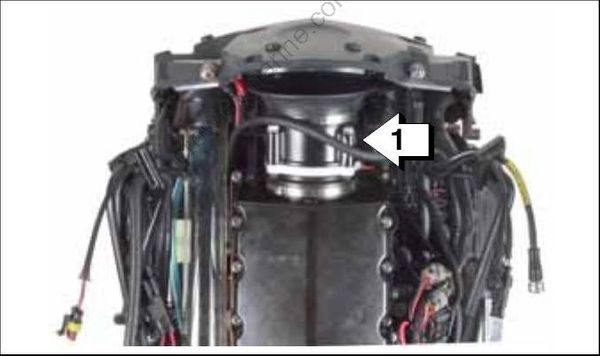
- Throttle valve assembly
If the ETC cannot communicate with the electronic throttle body for more than 250 milliseconds, the EMM:
| Activates S.A.F.E |
|---|
| Stores EMM fault code 162 |
| Engine Monitor: CHECK ENGINE display ON |
If the throttle plate cannot achieve the commanded position, the EMM:
| Activates S.A.F.E. |
|---|
| Stores EMM fault code 179 |
| Engine Monitor: CHECK ENGINE display ON |
System Settings and Diagnostics
Use Evinrude Diagnostic software, v 6.1 or higher to communicate with the remote control. Refer to Communication on p. 90.
Diagnostic software can change configuration set tings, view identification information and stored faults, monitor control functions or update soft ware.
Multiple Engine Instancing
Multiple outboard installations require the transom position of each outboard be identified.
Engine identity is set and stored in the EMM of each outboard. By default the EMM of all out boards is set to instance zero (0) at the factory. Outboards are identified as Instance 0 through 3, from port to starboard, up to four outboards.
Engine identity of each outboard must be set manually or with Evinrude Diagnostics software v 6.1 or higher. Use the following chart to assign the engine instance number to the outboard’s position on the transom.
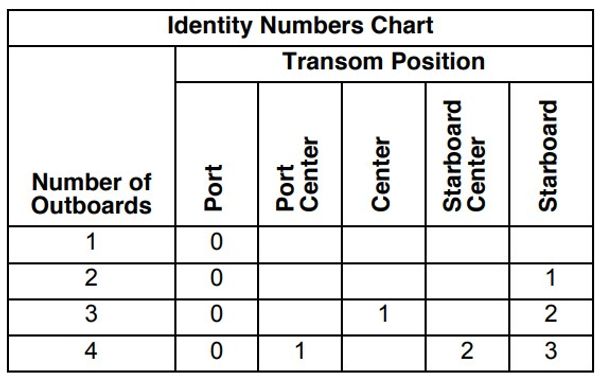
If duplicate engine identity numbers are detected, the affected outboard’s NEUTRAL indicator LED will flash rapidly.
Manual Instancing Method
Do NOT vary from this procedure.
Pressing any other button on the remote control or switch panels other than the STOP switch or turning the key OFF will exit from this process.
This can cause the system to react unpredictably. If any other button is pressed accidentally, turn the key switch OFF and start the procedure over.
When manually setting engine instance, start with the port outboard and work toward the starboard outboard. Follow these steps EXACTLY:
With the key switch off, disconnect the remote control (private) network cables from all out boards.
Push and hold the SYNC button while turning the key switch ON. Continue holding the SYNC button for at least 2 seconds.
Connect the remote cCompare the information on the Identification screen to ontrol (private) network cable to the first (port) outboard, powering the EMM. Then press the STOP button for that out board. The control will send an instance message with appropriate instance to the EMM.
After setting the instance on outboard #1, disconnect the private network cable from out board #1. Connect the private network cable to outboard #2. Then press the STOP button for outboard #2.
If this installation has more than two outboards, go to the step 5. If this is a dual outboard installation, go to step 7.
- After setting the instance on outboard #2, disconnect the private network cable from out board #2. Connect the private network cable to outboard #3. Then press the STOP button for outboard #3.
If this installation has more than three outboards go to the step 6. If this is a triple outboard installation, go to step 7.
After setting the instance on outboard #3, disconnect the private network cable from out board #3. Connect the private network cable to outboard #4. Then press the STOP button for outboard #4.
After setting the instance on the last outboard, turn the key switch OFF. Connect the private network cable to all outboards. Then turn the key switch ON to complete the instancing process.
Diagnostic Software Method
Before beginning, record the model number and serial number from the serial number tag of each outboard. Note the transom position of each out board.
Use Evinrude Diagnostics software v 6.1 or higher to set engine instance.
Connect the PC to the NMEA 2000 network. Turn the key switch ON.
Open the Evinrude Diagnostics software program.From the Device List select the EMM for the first outboard.
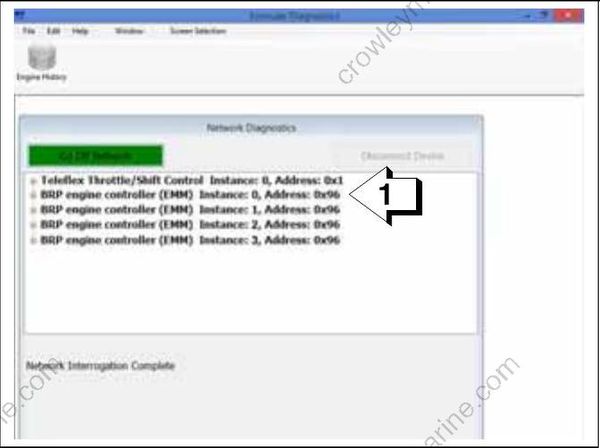
- Device List
- Select the Identification screen and note the model number and serial number of the out board.
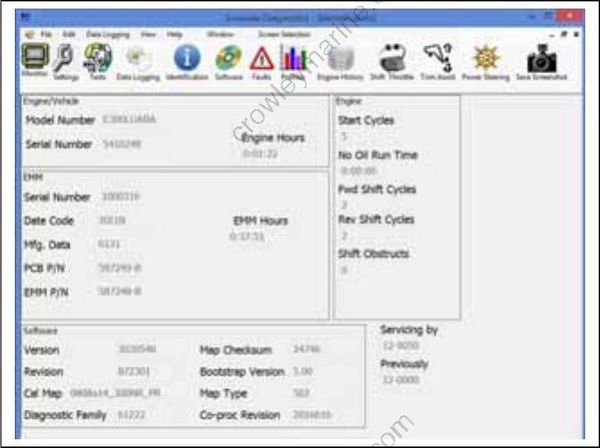
Identification Screen
Compare the information on the Identification screen to the serial number tag to determine the outboard transom position and engine instance. See the Identity Numbers Chart on p. 226.
Close the Identification screen.
- Next select the Settings screen. Then select the Configure button.
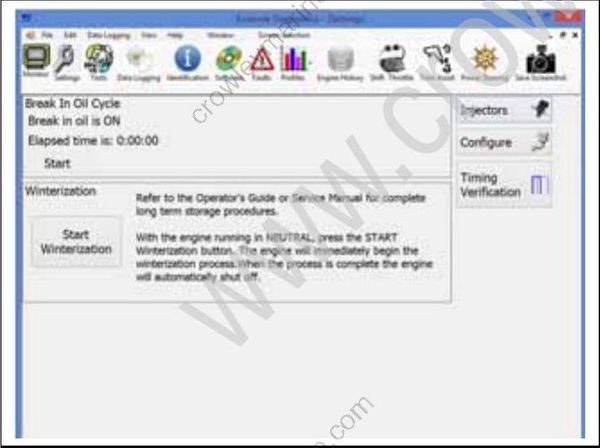
Settings Screen
Under Engine Option Configuration, select the total number of engines.
Then select the engine’s transom position from the available Engine Selection list.
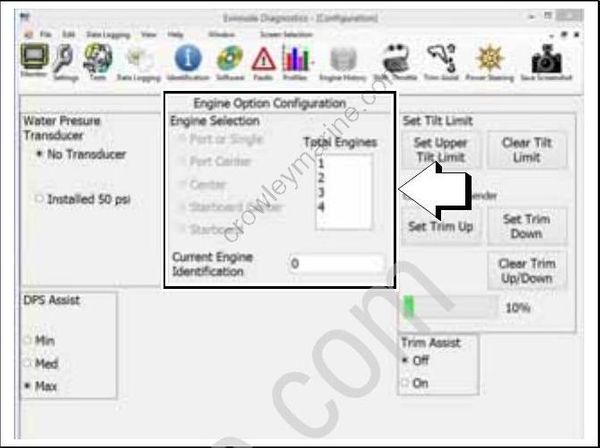
Engine Option Configuration
Close the Configuration screen. Then close the Settings screen.
From the Device List select Disconnect Device.
From the Device List select the EMM for the next outboard.
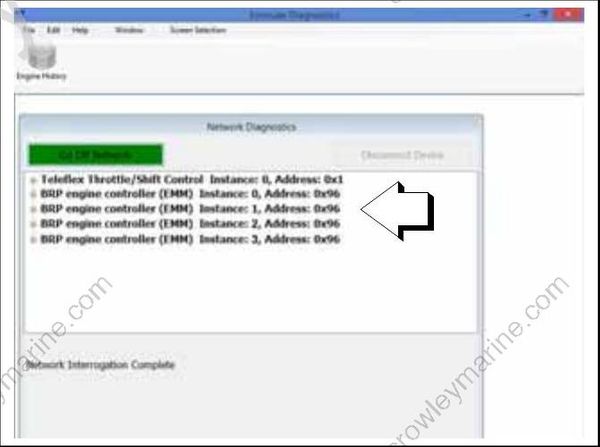
Device List
Repeat steps 3 through 9 for each outboard.
After engine identity has been set for each out board, turn the key switch OFF and back ON to complete the procedure.
Connecting to each EMM and confirm the instance of each outboard is correctly set according to transom position.
Remote Control Configuration
Select the Config button to make remote control configurations changes or calibrate the remote control lever(s).
After making setting selections, be sure to press the Save Changes button.
To calibrate the remote control lever(s), press the Initiate button to start the procedure.
Following the on-screen prompts, move the control lever to the directed position, then press the Set Position button.
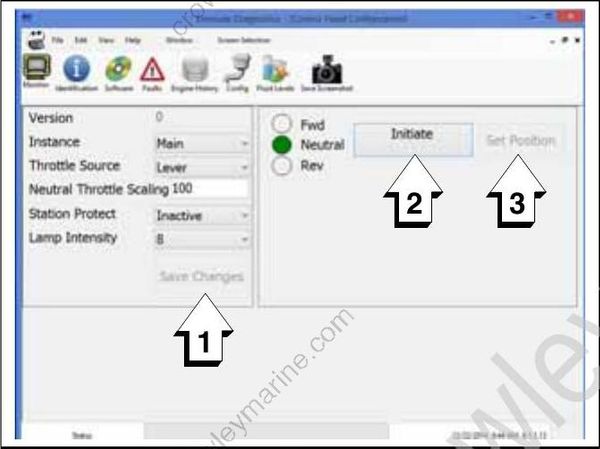
Remote Control Configuration Screen
- Save Changes button
- Initiate calibration button
- Set Position button
Remote Control Identity
Select the Identification button to view identification information.
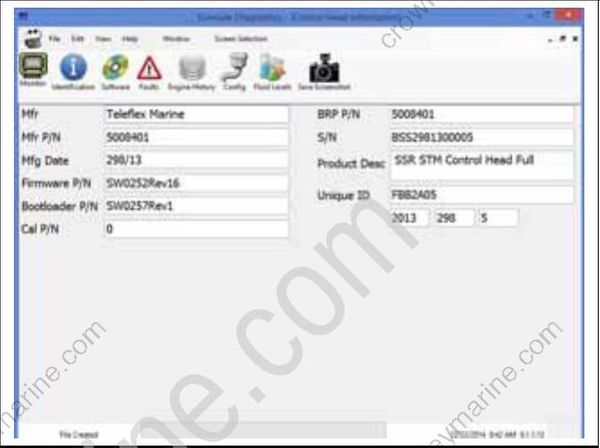
Remote Control Identity Screen
Fluid Level Configuration
Select the Fluid Levels button to configure fuel or oil level sensors connected to the remote control network.
After making selections, be sure to press the Save Configuration button for the selected fluid channel.
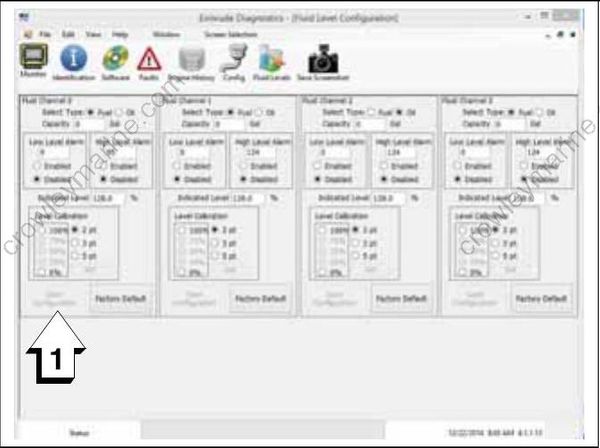
Remote Control Fluid Levels Configuration Screen
- Save Configuration button
If equipped, fluid levels can also be configured using an Evinrude ICON Touch digital display. See the User’s Guide for the digital display.
Remote Control Monitor
Select the Monitor button to view certain power faults and remote control functions. On-screen indicators will illuminate when the related function on the remote control is activated.
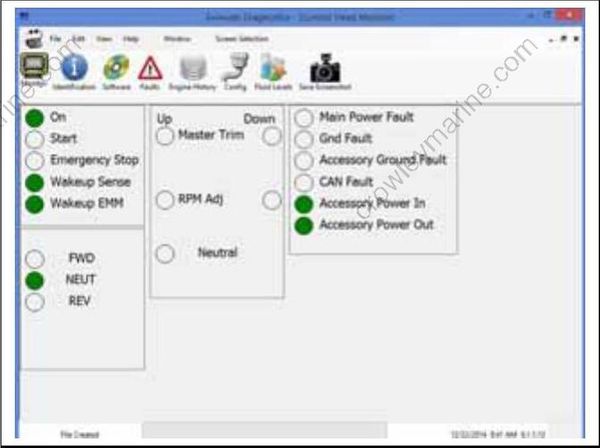
Remote Control Monitor Screen
Remote Control Faults
Select the Faults button to view any remote control fault codes.
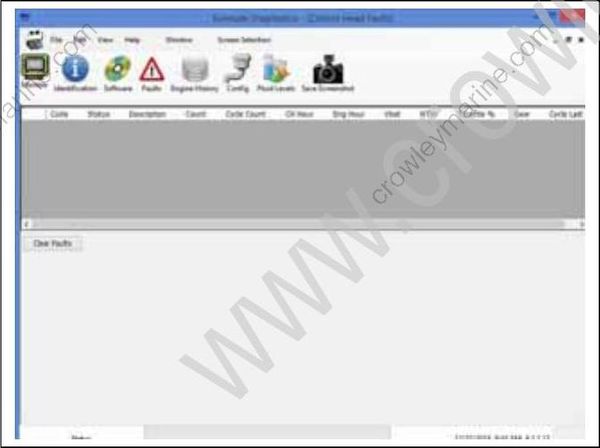
Remote Control Faults Screen
ICON II System NEUTRAL Idle Mode
The following conditions will cause the ICON II system to enter NEUTRAL idle mode:
- Remote control lever sensor failure
- Foot throttle sensor failure
- Loss of communication with the EMM
The EMM:
| Activates NEUTRAL idle mode |
|---|
| Stores remote control fault code between1 and 12; or, 21, 24, 27, or 30. |
| Engine Monitor: CHECK ENGINE display ON |
Remote Control Software
Select the Software button to upload software to the remote control. Press the Load Software but ton and follow the on-screen prompts.
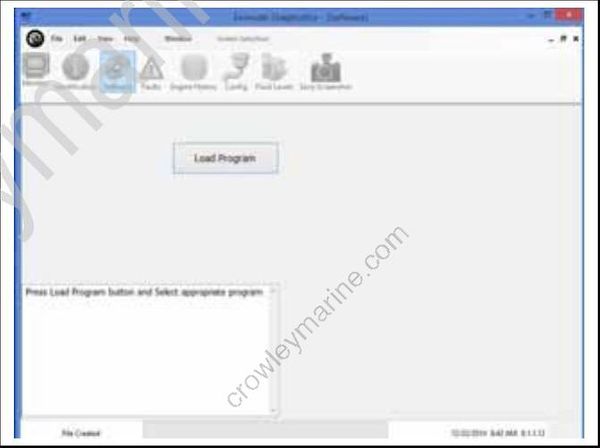
Remote Control Software Screen
